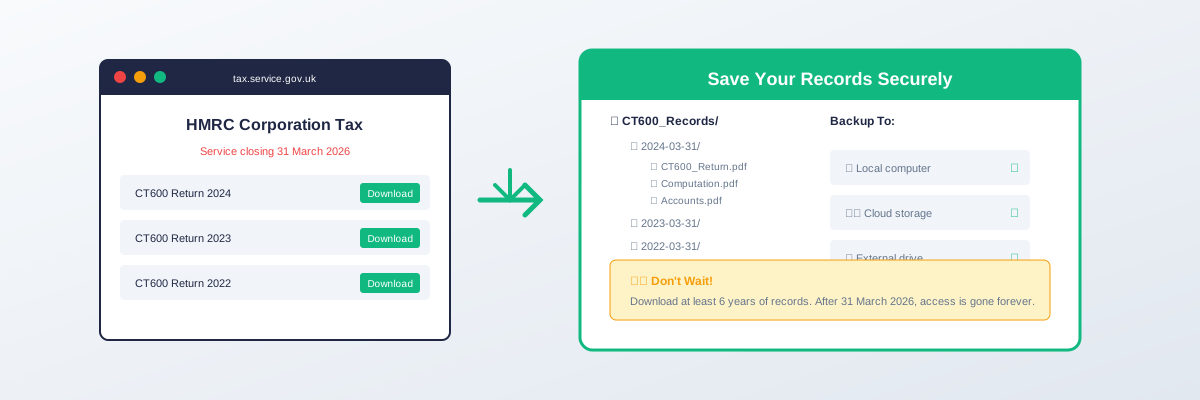
Download Your CT600 History Before HMRC Closes
Urgent: HMRC's Company Accounts and Tax Online (CATO) service closes permanently on 31 March 2026. After this date, you will not be able to access your previously filed CT600 returns, computations, or accounts submitted through this service.
Download your records now. This guide shows you exactly how.
Why This Matters
You'll Lose Access Permanently
When CATO closes, your filing history disappears from HMRC's online portal. You won't be able to:
- View past CT600 returns
- Download submitted computations
- Access accounts filed through the joint service
- Print acknowledgements or receipts
You May Need These Records
Keep your CT600 history because:
- HMRC enquiries — HMRC can enquire into returns up to 6 years back (longer if fraud suspected)
- Accountant handovers — New accountants need prior year comparatives
- Company sales — Due diligence requires historical tax records
- Loan applications — Lenders may request filed accounts
- Personal reference — Useful for understanding past decisions
What to Download
Essential Documents
| Document | Why You Need It |
|---|---|
| CT600 returns | The actual Corporation Tax return submitted |
| Tax computations | Shows how tax was calculated |
| Filed accounts | Accounts submitted with the return |
| Submission receipts | Proof of filing date and acceptance |
How Far Back?
HMRC recommends downloading at least 3 years of filings. We recommend going further:
- Minimum: Last 3 years
- Recommended: Last 6 years (HMRC enquiry window)
- Ideal: All available records
Step-by-Step Download Guide
Step 1: Log in to HMRC
- Go to tax.service.gov.uk
- Click "Sign in"
- Enter your Government Gateway user ID
- Enter your password
- Complete any 2-factor authentication
Step 2: Navigate to Corporation Tax
- From your business tax account dashboard
- Find "Corporation Tax" or "Company Tax"
- Select your company (if you have multiple)
- Look for "View submitted returns" or "Filing history"
Step 3: Download Each Return
For each year:
- Click on the accounting period
- Select "View return" or "Download"
- Choose PDF format where available
- Save to your computer with clear naming:
Step 4: Get Submission Receipts
For each return:
- Look for "View submission receipt" or "Acknowledgement"
- Download or print to PDF
- This proves when and what was submitted
Step 5: Verify Downloads
Before closing:
- Open each downloaded file
- Check it displays correctly
- Verify it's the right year and company
- Confirm all pages are present
Organising Your Downloads
Folder Structure
Create a clear folder structure:
``` CT600_Records/ ├── 2024-03-31/ │ ├── CT600_Return.pdf │ ├── Computation.pdf │ ├── Accounts.pdf │ └── Submission_Receipt.pdf ├── 2023-03-31/ │ └── ... ├── 2022-03-31/ │ └── ... └── 2021-03-31/ └── ... ```
File Naming Convention
Use consistent naming:
- `CT600_[CompanyName]_[PeriodEnd]_Return.pdf`
- `CT600_[CompanyName]_[PeriodEnd]_Computation.pdf`
- `CT600_[CompanyName]_[PeriodEnd]_Accounts.pdf`
- `CT600_[CompanyName]_[PeriodEnd]_Receipt.pdf`
Backup Your Downloads
Local Storage
- Save to your computer's hard drive
- Keep a copy on an external drive
- Consider a second external backup
Cloud Storage
- Upload to Google Drive, Dropbox, or OneDrive
- Ensure the folder is included in cloud sync
- Check uploads completed successfully
Security Considerations
These documents contain sensitive financial information:
- Use encrypted storage where possible
- Don't share cloud folder links publicly
- Password-protect external drives
- Keep access credentials secure
What If You Can't Download?
Technical Issues
If HMRC's website isn't working:
- Try a different browser
- Clear your cache and cookies
- Try at a different time (less busy periods)
- Contact HMRC technical support
Missing Returns
If returns don't appear:
- Check you're viewing the correct company
- Verify the Government Gateway account is linked to that company
- Some very old returns may not be available online
- Contact HMRC if recent returns are missing
Can't Log In
If you've forgotten credentials:
- Use HMRC's password reset
- Request a new Government Gateway ID if needed
- Don't wait until the deadline to sort access issues
Timeline
| When | Action |
|---|---|
| Now | Download all available records |
| Monthly | Download any new filings made |
| March 2026 | Final check before service closes |
| After 31 March 2026 | Too late — access removed |
After Downloading
Set Up New Software
Once your history is saved, prepare for future filings:
- Choose CT600 software (TinyTax is free)
- Set up your account
- Import prior year figures if needed
- File your next return through the new software
What Happens to Government Gateway?
Your Government Gateway account remains active after CATO closes. You can still use it for:
- Paying Corporation Tax
- Viewing your tax account balance
- Other HMRC services (VAT, PAYE, etc.)
Frequently Asked Questions
How long do I have?
Until 31 March 2026. But don't wait — do it now in case you encounter problems.What if I only used HMRC for some years?
Download whatever you filed through HMRC. Returns filed through accountants or other software should be available from those sources.Is there a limit to how much I can download?
No. Download everything available.Will HMRC send me copies if I ask?
Possibly, but there may be charges and delays. Downloading yourself is faster and free.What format should I save files in?
PDF is best — it's universally readable and preserves formatting.Can I download on behalf of a client?
If you have authorisation as an agent, yes. Log in through your agent Government Gateway.Summary
- Act now — Don't wait until March 2026
- Download everything — At least 6 years of records
- Organise clearly — Use consistent naming and folders
- Back up securely — Multiple copies in multiple places
- Verify downloads — Check files open correctly
Once you've secured your history, set up free CT600 filing with TinyTax. Create your account →