Government Gateway: Setup Guide for Companies
Government Gateway is HMRC's online portal for tax services. You'll need it to file your CT600 and manage your company's tax affairs. Here's how to set it up.
What Is Government Gateway?
Government Gateway is HMRC's secure login system. It provides access to:
- Corporation Tax services (CT600 filing)
- VAT services
- PAYE for employers
- Other HMRC services
Before You Start
What You'll Need
- Company registration number (8 digits)
- Company UTR (Unique Taxpayer Reference) - 10 digits
- Your company's registered office address
- An email address
- A UK mobile number (for security codes)
Don't Have a UTR?
HMRC issues your company UTR automatically when you register for Corporation Tax. This usually happens within a few weeks of incorporation.
If you haven't received it, contact HMRC: 0300 200 3410
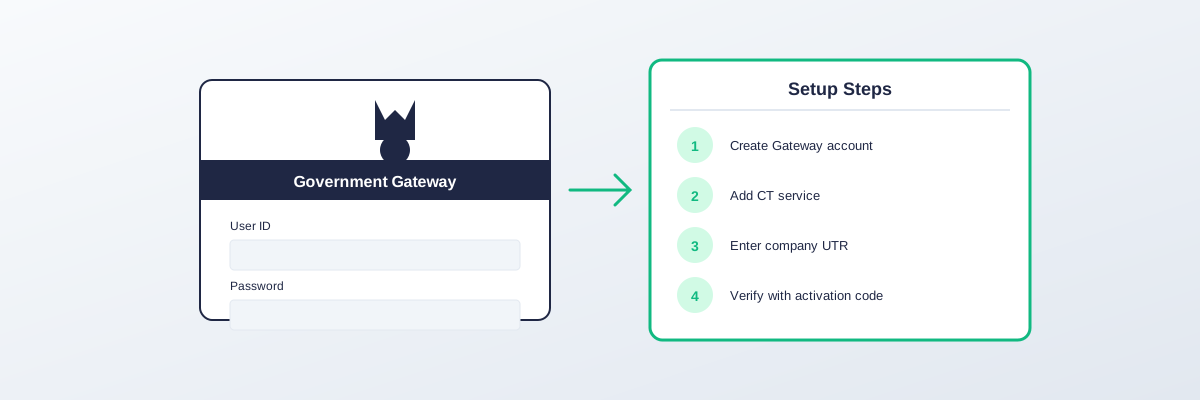
Step 1: Create a Government Gateway Account
Go to the Portal
Visit: www.gov.uk/log-in-register-hmrc-online-services
Create Organisation Account
- Click "Create sign in details"
- Select "Organisation" (not Individual)
- Enter your email address
- Create a password
- Set up two-factor authentication
Save Your User ID
Important: HMRC will give you a 12-digit User ID. Save this securely—you'll need it every time you log in.
Step 2: Enrol for Corporation Tax
Add CT Service
- Log into Government Gateway
- Click "Add a tax, duty or scheme"
- Select "Corporation Tax"
- Enter your Company UTR
- Enter your company registration number
Verification
HMRC will send an activation code by post to your registered office address. This takes 7-10 days.
Activate the Service
- Log back into Government Gateway
- Enter the activation code
- Corporation Tax service is now active
Step 3: Connect CT600 Software
Why This Matters
Most companies use software (like TinyTax) to file their CT600. The software needs permission to submit on your behalf.
Authorisation Process (TinyTax)
- Log into TinyTax
- Add your company
- Click "Connect to HMRC"
- You'll be redirected to Government Gateway
- Log in with your Gateway credentials
- Grant TinyTax access
- You're connected
What Access Means
The software can:
- Submit CT600 returns
- Check submission status
- View certain account information
- Access other HMRC services
- Change your details without your action
- Make payments
Common Issues
"Company Not Recognised"
Cause: Company number or UTR doesn't match HMRC records
Fix:
- Double-check both numbers
- Ensure no leading zeros are missing
- Wait if recently incorporated (HMRC needs time to update)
"Activation Code Not Received"
Cause: Postal delays or wrong address
Fix:
- Check your registered office address is correct at Companies House
- Request a new code from Government Gateway
- Allow 10 working days
"User ID Forgotten"
Fix:
- Go to Government Gateway login
- Click "Problems signing in"
- Select "I have forgotten my User ID"
- Follow recovery process
"Two-Factor Authentication Issues"
Fix:
- Ensure your mobile number is current
- Check for SMS from HMRC
- Use backup codes if set up
- Contact HMRC if locked out
Adding Multiple Services
Other Services You Might Need
| Service | What It's For |
|---|---|
| Corporation Tax | CT600 filing |
| PAYE for employers | If you have employees |
| VAT | If VAT registered |
| Construction Industry Scheme | If in construction |
Agent Access
If You Have an Accountant
Your accountant may ask for agent authorisation:
- Log into Government Gateway
- Go to "Manage account"
- Select "Authorise an agent"
- Enter the agent's reference number
- Confirm authorisation
What Agents Can Do
- File returns on your behalf
- View your tax position
- Communicate with HMRC for you
Security Best Practices
Protect Your Account
- Use a strong, unique password
- Enable two-factor authentication
- Keep your User ID confidential
- Log out after each session
- Use a secure internet connection
If You Suspect Unauthorised Access
- Log in immediately
- Change your password
- Review recent activity
- Contact HMRC if concerned
- Remove suspicious authorisations
Frequently Asked Questions
Do I need Government Gateway if using software?
Yes. Software uses Government Gateway authentication to verify your identity and submit returns.
Can I have multiple users for my company?
Yes. You can add additional administrators in Government Gateway settings.
What if my company details change?
Update your registered office at Companies House. HMRC records update from Companies House data.
Is Government Gateway the same as Companies House WebFiling?
No. Government Gateway is for HMRC (tax). Companies House WebFiling is for Companies House (company filings). They're separate systems.
How long does setup take?
Initial account: 10 minutes. Activation code: 7-10 days. Total: About 2 weeks.
Summary Checklist
Setup Steps
- Create Government Gateway organisation account
- Save your 12-digit User ID
- Enrol for Corporation Tax
- Wait for activation code (postal)
- Enter activation code
- Connect your CT600 software
Information Needed
- Company registration number
- Company UTR
- Registered office address
- Email address
- UK mobile number
Related guides:
- How to File a CT600
- UTR Number Explained