How to Switch from HMRC's CT600 Service: Step-by-Step Guide
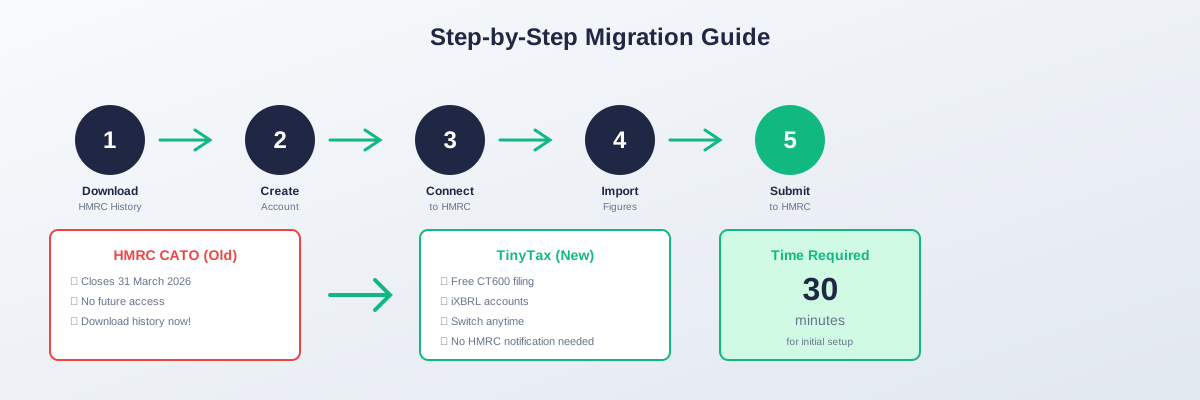
HMRC's free Company Accounts and Tax Online (CATO) service closes on 31 March 2026. This guide walks you through switching to commercial software — it's simpler than you might think.
Before You Start
What You'll Need
- Your company's Government Gateway credentials
- Your Unique Taxpayer Reference (UTR) — 10-digit number from HMRC
- Your company registration number — 8-digit number from Companies House
- Your latest accounts or trial balance
- About 30 minutes for the initial setup
Choose Your New Software
If you haven't already, select your CT600 filing software. Options include:
- TinyTax — Free for micro-entity companies
- TaxCalc — From £100+/year
- IRIS — From £200+/year
- Sage — From £150+/year
Step 1: Download Your HMRC Filing History
Do this first. After 31 March 2026, you won't be able to access your previous returns filed through CATO.
How to Download
- Log in to your HMRC business tax account at tax.service.gov.uk
- Navigate to Corporation Tax
- Find "View submitted returns" or similar
- Download each return from the last 3+ years
- Save the PDFs securely (backup to cloud storage)
What to Download
- All CT600 returns
- Corporation tax computations
- Submitted accounts
- Any correspondence or acknowledgements
Step 2: Create Your Account
On TinyTax
- Visit tinytax.co.uk/register
- Enter your email address
- Create a password
- Verify your email
Link Your Company
- Enter your company registration number
- TinyTax automatically fetches your company details from Companies House
- Confirm the details are correct
Step 3: Set Up HMRC Connection
To submit CT600 returns, your software needs to connect to HMRC's systems.
Authorise Your Software
- In TinyTax, go to Settings → HMRC Connection
- Click "Connect to HMRC"
- You'll be redirected to Government Gateway
- Log in with your existing credentials
- Grant permission for TinyTax to file on your behalf
Enter Your UTR
Your Unique Taxpayer Reference connects your company to HMRC's records:
- Enter your 10-digit UTR
- TinyTax validates it against HMRC's systems
- You're ready to file
Step 4: Enter Your Accounting Period
Set up the period you're filing for:
- Select your accounting period end date
- Confirm the period start date
- If it's your first year, enter the incorporation date
For Ongoing Filings
If you've previously filed through HMRC, TinyTax can fetch your prior year figures automatically to ensure consistency.
Step 5: Import or Enter Your Figures
Option A: Trial Balance Import (Recommended)
If you use accounting software like Xero or QuickBooks:
- Export your trial balance as CSV
- In TinyTax, click "Import Trial Balance"
- Upload the CSV file
- Map accounts to CT600 categories (TinyTax suggests mappings)
- Review and confirm
Option B: Manual Entry
Enter figures directly into the submission form:
- Turnover and other income
- Cost of sales and expenses
- Assets and liabilities
- Any adjustments for tax purposes
Step 6: Review and Calculate Tax
TinyTax automatically:
- Calculates your Corporation Tax liability
- Applies the correct tax rates (19% small profits, 25% main rate)
- Computes marginal relief if applicable
- Generates your CT600 return
- Creates iXBRL-tagged accounts
Check for Errors
The software validates your return before submission:
- Mathematical accuracy
- Required fields completed
- Logical consistency
- HMRC rule compliance
Step 7: Submit to HMRC
When you're ready:
- Review the complete CT600 return
- Click "Submit to HMRC"
- The software transmits your return electronically
- HMRC sends an acknowledgement (usually within minutes)
- Save the submission receipt
What Gets Submitted
- CT600 Corporation Tax return
- Corporation Tax computation
- iXBRL accounts (attached to the CT600)
Step 8: File Accounts with Companies House
You can file your accounts with Companies House through TinyTax simultaneously or separately:
- Review the accounts generated
- Click "Submit to Companies House"
- Receive confirmation and submission number
Step 9: Pay Your Corporation Tax
Submitting your return doesn't pay your tax. You still need to pay separately:
Payment Methods
- Direct Debit — Set up through HMRC
- Bank transfer — Using HMRC payment details and your UTR
- Corporate credit/debit card — Via HMRC's website
Payment Deadline
Corporation Tax is due 9 months and 1 day after your accounting period ends.
Timeline: When to Switch
| Timing | Action |
|---|---|
| Now | Download HMRC filing history |
| Before your next filing | Create account and set up software |
| Next filing due | File through new software (practice run) |
| 31 March 2026 | HMRC service closes permanently |
Frequently Asked Questions
Do I need to tell HMRC I'm switching?
No. HMRC doesn't require notification when you change filing software.Will HMRC know my return came from different software?
Yes, returns include the software name, but this doesn't affect how HMRC processes them.What if I have a problem during my first submission?
Contact your software provider's support. TinyTax offers free support for all users.Can I go back to HMRC if I don't like the new software?
Not after 31 March 2026 — the service closes permanently. But you can switch between commercial software providers anytime.Is my data safe when switching?
Reputable software providers use encryption and secure connections. TinyTax uses bank-grade security.Summary
Switching from HMRC's CT600 service is straightforward:
- Download your HMRC filing history (do this now)
- Create an account with your chosen software
- Set up HMRC connection via Government Gateway
- Import or enter your figures
- Submit your return through the new software
Ready to switch? TinyTax makes the transition simple. Create your free account →