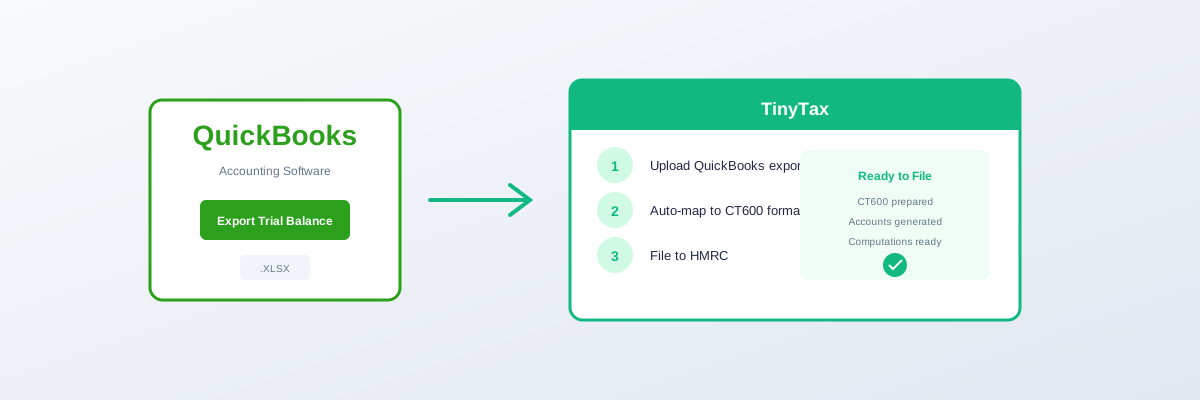
QuickBooks to CT600: Import Your Trial Balance
Using QuickBooks for your company's accounts? This guide shows you how to export your trial balance and import it into CT600 software for faster, more accurate corporation tax filing.
QuickBooks Online vs Desktop
This guide covers both versions:
| Version | Export Method |
|---|---|
| QuickBooks Online | Reports → Export |
| QuickBooks Desktop | Reports → Excel export |
Step 1: Export from QuickBooks Online
Navigate to Reports
- Log into QuickBooks Online
- Click Reports in the left menu
- In the search box, type "Trial Balance"
- Click Trial Balance report
Set the Date Range
- Click the Report period dropdown
- Select Custom
- Set From date: Start of accounting period
- Set To date: End of accounting period
- Click Run Report
Verify the Report
Before exporting, check:
- Correct date range
- Trial balance balances
- All accounts appear
- Figures look correct
Export
- Click the Export icon (top right)
- Select Export to Excel
- File downloads as .xlsx
Convert to CSV (if needed)
- Open the Excel file
- File → Save As
- Choose "CSV (Comma delimited)"
- Save
Step 1 (Alternative): Export from QuickBooks Desktop
Navigate to Reports
- Open QuickBooks Desktop
- Click Reports menu
- Select Accountant & Taxes
- Click Trial Balance
Set the Date
- Change Dates dropdown to "Custom"
- Enter your accounting period dates
- Click Refresh
Export
- Click Excel button (or File → Export)
- Choose "Create a new worksheet"
- Save as Excel file
- Convert to CSV if needed
Step 2: Prepare the Export
What QuickBooks Exports
Your export will typically contain:
| Column | Content |
|---|---|
| Account | Account name/code |
| Debit | Debit balance |
| Credit | Credit balance |
Clean Up (if needed)
- Open in Excel
- Remove any header rows above the data
- Remove any totals rows
- Delete blank rows
- Save as CSV
Example Clean Format
| Account | Debit | Credit |
|---|---|---|
| Sales | 85,000 | |
| Cost of Goods | 45,000 | |
| Rent | 12,000 | |
| Wages | 20,000 | |
| Bank | 15,000 | |
| Trade Creditors | 7,000 |
Step 3: Import to CT600 Software
Upload Process
- Log into your CT600 software
- Select the company
- Navigate to "Import" or "Trial Balance"
- Upload your CSV file
- Map columns if prompted
Account Mapping
Match QuickBooks accounts to CT600 categories:
| QuickBooks Account | CT600 Category |
|---|---|
| Income / Sales | Trading income |
| Cost of Goods Sold | Trading expenses |
| Rent or Lease | Premises costs |
| Utilities | Premises costs |
| Payroll Expenses | Staff costs |
| Depreciation | Disallowed expenses |
| Insurance | Trading expenses |
Common QuickBooks Account Mappings
Income Accounts
| QuickBooks | CT600 Box |
|---|---|
| Sales | Box 145 |
| Other Income | Box 145 or 172 |
| Interest Earned | Box 172 |
| Rental Income | Box 170 |
Expense Accounts
| QuickBooks | CT600 Treatment |
|---|---|
| Cost of Goods Sold | Trading expense |
| Advertising | Trading expense |
| Bank Charges | Trading expense |
| Professional Fees | Trading expense |
| Meals & Entertainment | Disallowed |
| Depreciation | Disallowed |
| Insurance | Trading expense |
| Office Expenses | Trading expense |
| Payroll | Staff costs |
| Rent | Premises costs |
| Utilities | Premises costs |
Balance Sheet Accounts
| QuickBooks | Use |
|---|---|
| Fixed Assets | Balance sheet |
| Accumulated Depreciation | Balance sheet |
| Current Account | Balance sheet |
| Accounts Receivable | Balance sheet |
| Accounts Payable | Balance sheet |
| Share Capital | Balance sheet |
| Retained Earnings | Balance sheet |
Troubleshooting
Issue: Export Has Extra Columns
Solution: Delete columns you don't need. Keep Account, Debit, Credit.
Issue: Numbers Have Commas
Solution: Most import tools handle this. If not, use Excel Find & Replace to remove commas from numbers.
Issue: Account Names Too Long
Solution: Shorten account names, or check if your CT600 software truncates them automatically.
Issue: Report Shows Wrong Currency
Solution: Check QuickBooks currency settings. The trial balance should be in GBP for UK CT600.
Issue: Sub-accounts Expand Unexpectedly
Solution: In QuickBooks report settings, choose to show summary level only, not sub-account detail.
QuickBooks Tips for CT600
Use Classes or Locations
If you have multiple business streams (e.g., trading and property), use QuickBooks Classes or Locations to track them separately.
Chart of Accounts Setup
A well-organised chart of accounts makes CT600 filing easier:
- Group similar accounts together
- Use clear, descriptive names
- Match categories to typical tax treatments
Close the Period
After exporting for CT600:
- Go to Settings → Account and Settings
- Advanced → Accounting
- Set "Close the books" date
Reconcile Before Export
Ensure all bank accounts and key accounts are reconciled before running your trial balance.
Matching Periods
QuickBooks Financial Year
Check your QuickBooks financial year matches Companies House:
- Settings → Account and Settings
- Company → Fiscal year
First Year Companies
If your first accounting period spans creation of QuickBooks account:
- Run from the first transaction date
- Not from QuickBooks "opening balance" date
Advanced: Direct Integration
QuickBooks API
Some CT600 software connects directly to QuickBooks:
- Automatic data sync
- No manual export
- Real-time figures
Frequently Asked Questions
Can I import from QuickBooks Self-Employed?
QuickBooks Self-Employed is for sole traders, not limited companies. If you're filing CT600, you should be using QuickBooks Online/Desktop, not Self-Employed.
What about multi-currency?
Export in GBP (base currency). Foreign currency accounts should show GBP equivalent values.
Can I import historical years?
Yes, run trial balance reports for each historical year you need.
What if I use cash basis in QuickBooks?
For corporation tax, you typically need accruals basis accounts. Check your QuickBooks settings and consult an accountant if unsure.
Checklist
Before Export
- Reconcile all bank accounts
- Review for unusual entries
- Verify correct period
Export Process
- Run Trial Balance report
- Set correct date range
- Export to Excel
- Convert to CSV if needed
Import
- Upload to CT600 software
- Map accounts to categories
- Review imported figures
- Make any adjustments
Related guides: