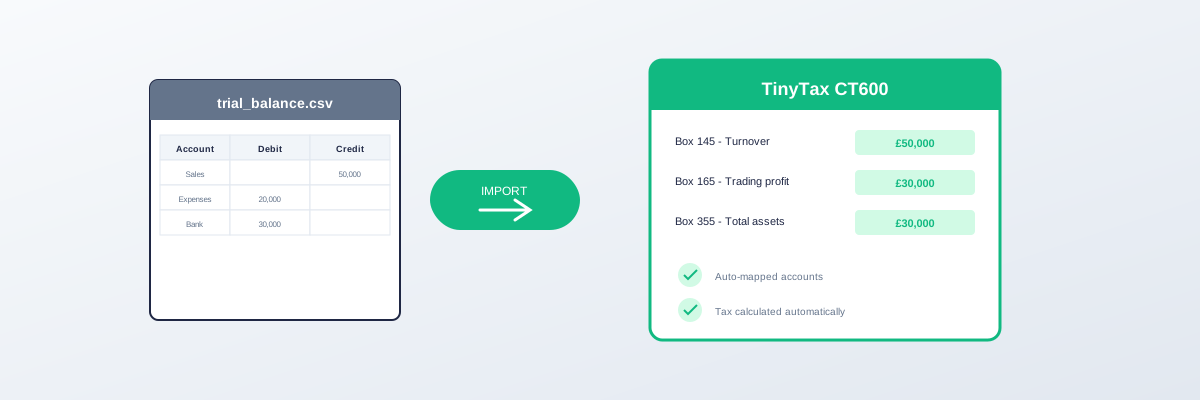
How to Import Trial Balance to CT600
Importing your trial balance into CT600 software saves time and reduces errors. Instead of manually entering figures, you can upload directly from your accounting software.
What Is a Trial Balance?
A trial balance is a summary of all account balances in your bookkeeping system at a specific date. It shows:
| Column | What It Contains |
|---|---|
| Account code | Nominal code for each account |
| Account name | Description of the account |
| Debit | Debit balance (if applicable) |
| Credit | Credit balance (if applicable) |
Why Import Instead of Manual Entry?
Benefits
| Manual Entry | Trial Balance Import |
|---|---|
| 30-60 minutes | 5 minutes |
| Error-prone | Accurate |
| Tedious | Simple |
| Each figure typed | One upload |
Risk Reduction
- No transcription errors
- Balances automatically checked
- Consistent with your accounting records
Import Methods
Method 1: Direct Integration
Some CT600 software connects directly to accounting packages:
| Software | Direct Connection |
|---|---|
| Xero | Via API |
| QuickBooks Online | Via API |
| Sage | Via export/import |
| FreeAgent | Via API |
Method 2: CSV File Upload
- Export trial balance from your accounting software
- Format as CSV (if needed)
- Upload to CT600 software
- Map accounts to tax categories
Method 3: Excel Template
- Download template from CT600 software
- Paste your trial balance data
- Upload completed template
Step-by-Step: CSV Import
Step 1: Export from Accounting Software
From Xero:
- Reports → Trial Balance
- Select correct date
- Export → CSV
- Reports → Account & Tax → Trial Balance
- Select period
- Export to Excel/CSV
- Reports → Trial Balance
- Export to CSV
Step 2: Format Your File
Most CT600 software expects:
| Column | Content |
|---|---|
| A | Account code |
| B | Account name |
| C | Debit amount |
| D | Credit amount |
| Column | Content |
|---|---|
| A | Account code |
| B | Account name |
| C | Balance (positive/negative) |
Step 3: Upload
- Log into CT600 software
- Navigate to Trial Balance Import
- Select your CSV file
- Upload
Step 4: Map Accounts
The software will ask you to match accounts to tax categories:
| Your Account | Tax Category |
|---|---|
| Sales | Trading income |
| Cost of sales | Trading expenses |
| Rent | Premises costs |
| Equipment | Capital items |
Common Account Mappings
Income Accounts
| Account Name | Maps To |
|---|---|
| Sales | Box 145 (Turnover) |
| Other income | Box 145 or 172 |
| Bank interest | Box 172 |
| Rental income | Box 170 |
Expense Accounts
| Account Name | Maps To |
|---|---|
| Staff costs | Trading expenses |
| Rent | Trading expenses |
| Insurance | Trading expenses |
| Professional fees | Trading expenses |
| Depreciation | Disallowed (add back) |
| Entertainment | Disallowed (add back) |
Balance Sheet Accounts
| Account Name | Maps To |
|---|---|
| Fixed assets | Balance sheet |
| Bank | Balance sheet |
| Debtors | Balance sheet |
| Creditors | Balance sheet |
| Share capital | Balance sheet |
Handling Common Issues
Issue 1: File Won't Upload
Causes:
- Wrong file format (use .csv)
- File too large
- Special characters in account names
- Save as plain CSV
- Remove special characters
- Check file size limits
Issue 2: Accounts Don't Map
Cause: Account names don't match expected categories
Fix:
- Manually map unrecognised accounts
- Standardise account names in your bookkeeping
- Create mapping rules for future
Issue 3: Trial Balance Doesn't Balance
Cause: Export error or bookkeeping issue
Fix:
- Re-export from accounting software
- Check for rounding differences
- Verify bookkeeping is reconciled
Issue 4: Wrong Period
Cause: Exported wrong date range
Fix:
- Check the trial balance date matches your accounting period end
- Re-export with correct dates
Best Practices
Before You Import
- Reconcile bank accounts
- Check trial balance balances
- Review for unusual entries
- Verify the correct period
Account Code Standards
Using standard account codes makes mapping easier:
| Range | Category |
|---|---|
| 1000-1999 | Fixed assets |
| 2000-2999 | Current assets |
| 3000-3999 | Current liabilities |
| 4000-4999 | Income |
| 5000-5999 | Cost of sales |
| 6000-6999 | Overheads |
| 7000-7999 | Other expenses |
Naming Conventions
Consistent account names help:
- Use "Staff Costs" not "Wages/Salaries/Staff"
- Use "Motor Expenses" not "Car Costs/Vehicle/Petrol"
- Avoid abbreviations
Software-Specific Guides
From Xero
See our detailed guide: Xero Trial Balance to CT600
From QuickBooks
See our detailed guide: QuickBooks Trial Balance to CT600
Frequently Asked Questions
Do I have to use trial balance import?
No. You can enter figures manually. But import saves time and reduces errors.
What if my accounts don't use standard codes?
You can still import—you'll just need to manually map accounts to tax categories.
Can I import from spreadsheets?
Yes, as long as they're in CSV format with the expected columns.
What about adjustments after import?
You can still make manual adjustments after importing your trial balance.
Does the trial balance include prior year?
Usually just current year. Prior year figures are often fetched separately from HMRC.
Summary
| Step | Action |
|---|---|
| 1 | Export trial balance from accounting software |
| 2 | Format as CSV if needed |
| 3 | Upload to CT600 software |
| 4 | Map accounts to tax categories |
| 5 | Review and adjust |
| 6 | Proceed with CT600 preparation |
Related guides: