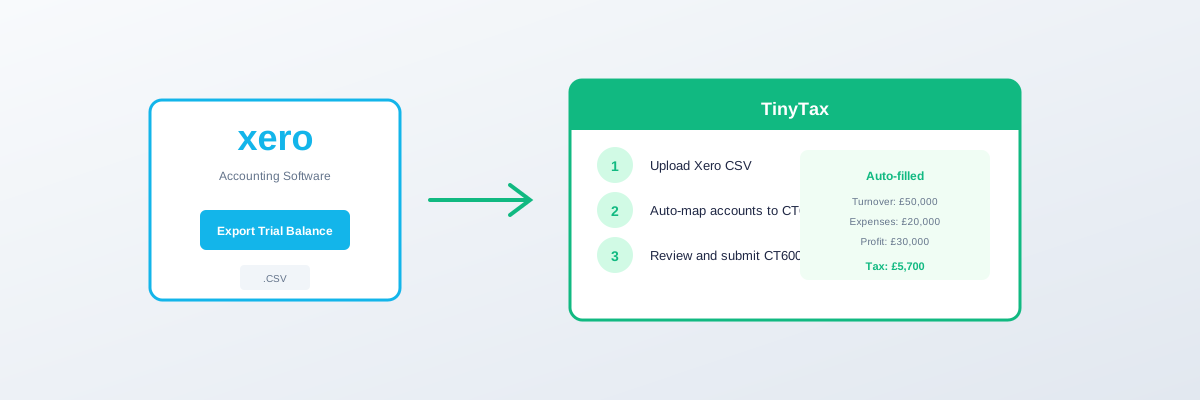
Xero to CT600: Import Your Trial Balance
Using Xero for your bookkeeping? This guide shows you how to export your trial balance and import it into CT600 software for faster corporation tax filing.
Overview
| Step | Time |
|---|---|
| Export from Xero | 2 minutes |
| Format (if needed) | 2 minutes |
| Import to CT600 | 2 minutes |
| Map accounts | 5-10 minutes (first time) |
| Total | ~15 minutes |
Step 1: Export Trial Balance from Xero
Navigate to Reports
- Log into Xero
- Click Accounting in the top menu
- Select Reports
- Under "Accounting" section, click Trial Balance
Set the Correct Date
- In the "Date" field, enter your accounting period end date
- For example: 31/03/2025 for March year-end
- Click Update
Check the Report
Before exporting, verify:
- Correct period end date shown
- Trial balance balances (debits = credits)
- All expected accounts appear
- No obviously wrong figures
Export to CSV
- Click Export button (top right)
- Select CSV
- File downloads to your computer
Step 2: Review the Export
What Xero Exports
Your CSV file will contain:
| Column | Content |
|---|---|
| Account Code | Your nominal codes |
| Account Name | Account descriptions |
| Account Type | Category |
| Debit | Debit balances |
| Credit | Credit balances |
| YTD Debit | Year-to-date debits |
| YTD Credit | Year-to-date credits |
Which Columns Matter
For CT600 import, you typically need:
- Account Code
- Account Name
- Debit (or balance)
- Credit (or balance)
Step 3: Import to CT600 Software
Using TinyTax
- Log into TinyTax
- Select your company
- Go to "Accounts" or "Import Trial Balance"
- Click "Upload CSV"
- Select your Xero export file
- Click "Import"
First-Time Setup
The first import requires account mapping:
| Xero Account | CT600 Category |
|---|---|
| 4000 Sales | Trading income |
| 5000 Cost of sales | Trading expenses |
| 6000 Rent | Premises costs |
| 7100 Depreciation | Disallowed expenses |
Common Xero Account Mappings
Standard Xero Chart of Accounts
| Code | Account | Maps To |
|---|---|---|
| 200 | Sales | Box 145 (Turnover) |
| 260 | Other Revenue | Box 145 or 172 |
| 270 | Interest Income | Box 172 |
| 310 | Cost of Sales | Trading expenses |
| 400 | Advertising | Trading expenses |
| 404 | Bank Fees | Trading expenses |
| 412 | Consulting & Accounting | Professional fees |
| 420 | Entertainment | Disallowed |
| 449 | Office Expenses | Trading expenses |
| 461 | Depreciation | Disallowed |
| 469 | Subscriptions | Trading expenses |
| 489 | Wages & Salaries | Staff costs |
Balance Sheet Accounts
| Code | Account | Use |
|---|---|---|
| 090 | Fixed Assets | Balance sheet |
| 091 | Acc. Depreciation | Balance sheet |
| 610 | Bank | Balance sheet |
| 620 | Petty Cash | Balance sheet |
| 800 | Trade Creditors | Balance sheet |
| 810 | Trade Debtors | Balance sheet |
Handling Xero-Specific Issues
Issue: "Account Type" Column Confuses Import
Solution: Some CT600 software ignores extra columns. If not, delete the "Account Type" column before importing.
Issue: Multiple Currency Columns
Solution: If you use multi-currency in Xero, export in base currency. Delete foreign currency columns if they cause issues.
Issue: Header Row Problems
Solution: Some software expects no header, others require it. Try both, or edit the CSV to match.
Issue: Blank Rows
Solution: Open in Excel, delete any blank rows, save as CSV again.
Xero Tips for Better CT600 Filing
Use Tracking Categories
If your company has multiple activities (e.g., trading and property), use Xero tracking categories to separate them.
Export trial balance by tracking category for easier CT600 allocation.
Regular Reconciliation
Before exporting:
- Reconcile all bank accounts
- Clear bank rules
- Review and approve pending items
Standardise Account Names
If you've customised Xero's chart of accounts:
- Use clear, consistent names
- Avoid abbreviations
- Include category hints in names
Lock the Period
After exporting, lock the period in Xero:
- Settings → General Settings
- Financial settings
- Set "Lock dates"
Matching Xero to CT600 Periods
Xero's Financial Year
Check your Xero financial year matches your Companies House accounting reference date:
- Settings → General Settings
- Financial settings
- Financial year end
If Periods Don't Match
If Xero and Companies House have different year-ends:
- Run trial balance to your Companies House year-end
- Don't use the automatic "Financial Year End" option
- Enter the specific date
Advanced: Xero API Integration
For Developers/Accountants
Some CT600 software offers direct Xero API integration:
- No manual export needed
- Data pulled automatically
- Stays in sync
Frequently Asked Questions
Can I import comparative figures?
Export two trial balances (this year and last year) and import both, or let CT600 software fetch prior year from HMRC.
What about unpublished invoices?
Xero includes all invoices in the trial balance. Ensure draft/awaiting approval invoices are handled correctly for your accounting method.
Can I make adjustments after import?
Yes. The import gives you a starting point. You can adjust figures in the CT600 software.
What if my chart of accounts is non-standard?
You'll need to map accounts manually. Consider standardising Xero for easier future imports.
Checklist
Before Export
- Bank accounts reconciled
- Correct period end date
- No pending transactions
Export
- Navigate to Reports → Trial Balance
- Set correct date
- Export to CSV
Import
- Upload to CT600 software
- Map accounts (first time)
- Review imported figures
- Make adjustments if needed
Related guides: